
How to Set Up Automatic Category Rules
NOTE – This workflow applies specifically to setting AUTOMATIC categories ie. those Categories which are applied to entries at the point of submission based on the entrants answers on the entry form. It does not apply to Manual categories, which you create as an Admin (typically once your submission deadline has closed) and which bypass the rules testing process.
For an entry to be submitted into a Category on the Entry Form, you need to set specific rules which can place the entries into that Category.
The first step to add Automatic Categories into an Award, is to update the relevant option in the Award’s Settings:
- Log into the Admin Interface
- Locate the desired Award and click on Settings
- Scroll down and click to expand Options
- Locate the setting called Award has categories? and toggle it to Yes if the Awards will run with Categories
- Please note that if this setting is toggled to Yes, the Award will need to contain at least 1 active Automatic Category, or any Entrant trying to submit an Entry will receive an error message on submission, telling them that they were not eligible to enter any Category. If the Award does not need Categories, leave this setting toggled to No. The error message will affect Entrant even if there are only Manual Categories, at least 1 Automatic Category needs to be present
- Click on Save before leaving the page
Each Automatic Category requires admins to set a MINIMUM OF ONE rule for it to work. There are no maximum number of rules that can be set to place an entry into a category. Each rule works as an AND so all criteria must be met in order for the entry to be placed into the category.
There are two sections of eligibility rules you need to set up:
- Eligibility Criteria rules
- Nomination Data rules
How to Set Up Eligibility Criteria Rules
Here is the standard workflow for creating Eligibility Criteria rules for Automatic Categories.
- Go to Award>Overview>Categories
- The Category List will open
- Find the Category whose rules you want to set and click on the Edit link to the right hand side
- The Category set up page opens. Scroll down to the Eligibility section:
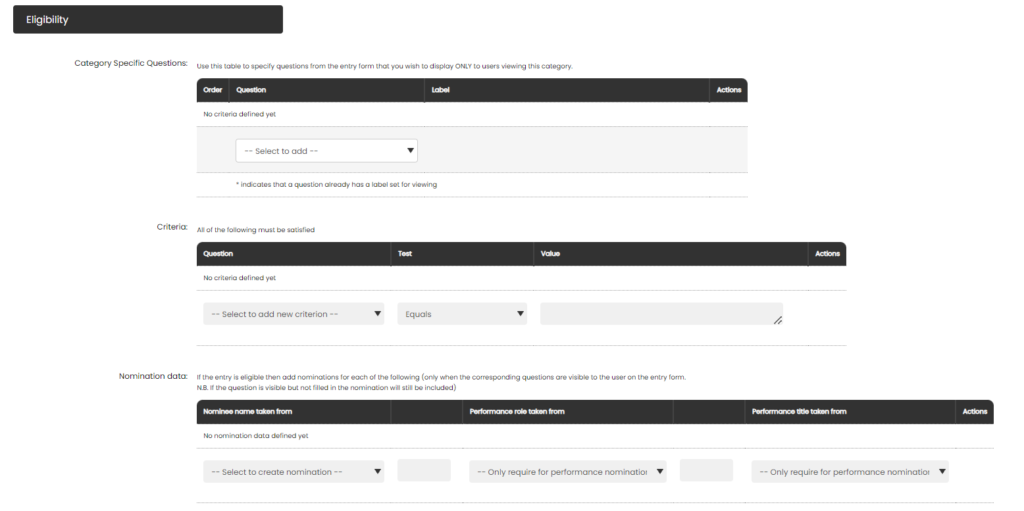
5. In the Criteria section, we create the rule/s for placement in this Category. There are three stages to setting the entry criteria:
Question – this is the question that the rule is based upon, which is represented as a dropdown of all the Questions on the form
Test – this is the test that we apply to the question to ensure the answer meets the required parameters
Value – this is the value that the entrant needs to supply as an answer to the question in order for the entry to be placed into the category
The most common rule you will want to create will be the Category Select question, where the entrant selects a category from a list, normally a dropdown or checkboxes. So, using the fields above, to create this rule you would select the fields below:
Question: Category Select Test: Equals Value: <This Category Name>
This will then determine that all entries that selected (‘equals’) the name of this particular Category on that question will qualify for placement in this Category.
6. After creating each rule, click Save. This will then enable you to create further rules if required. If you create more rules, then an entry must fulfil ALL of these rules to qualify for this Category.
An example of a further Category rule you might add – to not only this, but ALL Categories – may be the acceptance of your Terms and Conditions. For example, this might look as follows:
Question: Terms and Conditions Acceptance Test: Equals Value: Yes
How to Set Up the Nomination Data
The Nomination data will be automatically populated – this is taken from the Main Question you set in the Question List. In most of the cases, this is the title of the Entry, which should always be one and unique for each Entry, and is usually a value valid for ALL Categories.